
How to Sign a PDF in Your Browser?


TL:DR : Sign PDF in Your Browser
You can sign a PDF in your browser for free using Firefox, Edge or Chrome, but these tools only add a basic signature with no audit trail. For contracts and approvals that need proof of who signed, KAiZEN eSign lets you sign, send and track PDFs in your browser, with an audit trail and multi-signer workflows. Your first 10 signatures are free.
Signing a PDF in your browser is one of the fastest ways to complete paperwork. There’s no need to scan, print, or install anything , just open your browser and sign in a few clicks.
Modern browsers like Firefox, Edge, and Chrome are useful for personal use, letting you draw or add a basic signature straight onto a PDF.
But if you need more than a scribble, something that holds up if a signature is ever questioned, KAiZEN eSign gives you legally binding electronic signatures, audit trails, and multi-signer workflows, all from your browser.
In this guide, you’ll learn how to sign a PDF in your browser for free using built-in tools and KAiZEN eSign
How to Sign PDF in Your Browser Using Free Tools
Free browser tools add a basic signature to a PDF, making them fine for personal use or informal approvals. But they do not support legally binding e-signatures, audit trails, or sending to other signers. Here are three ways to sign PDF in your browser for free.
1. Sign PDF in Firefox Browser
Firefox includes the most capable native signature tool of the three browsers, with no signup required.
- Open your PDF in Firefox
- Click Add signature then Add new signature in the top menu
- Choose to type, draw, or upload an image of your signature
- Add a description and choose whether to save the signature for reuse
- Click Add to place the signature on the page
- Use your mouse to move and reposition it
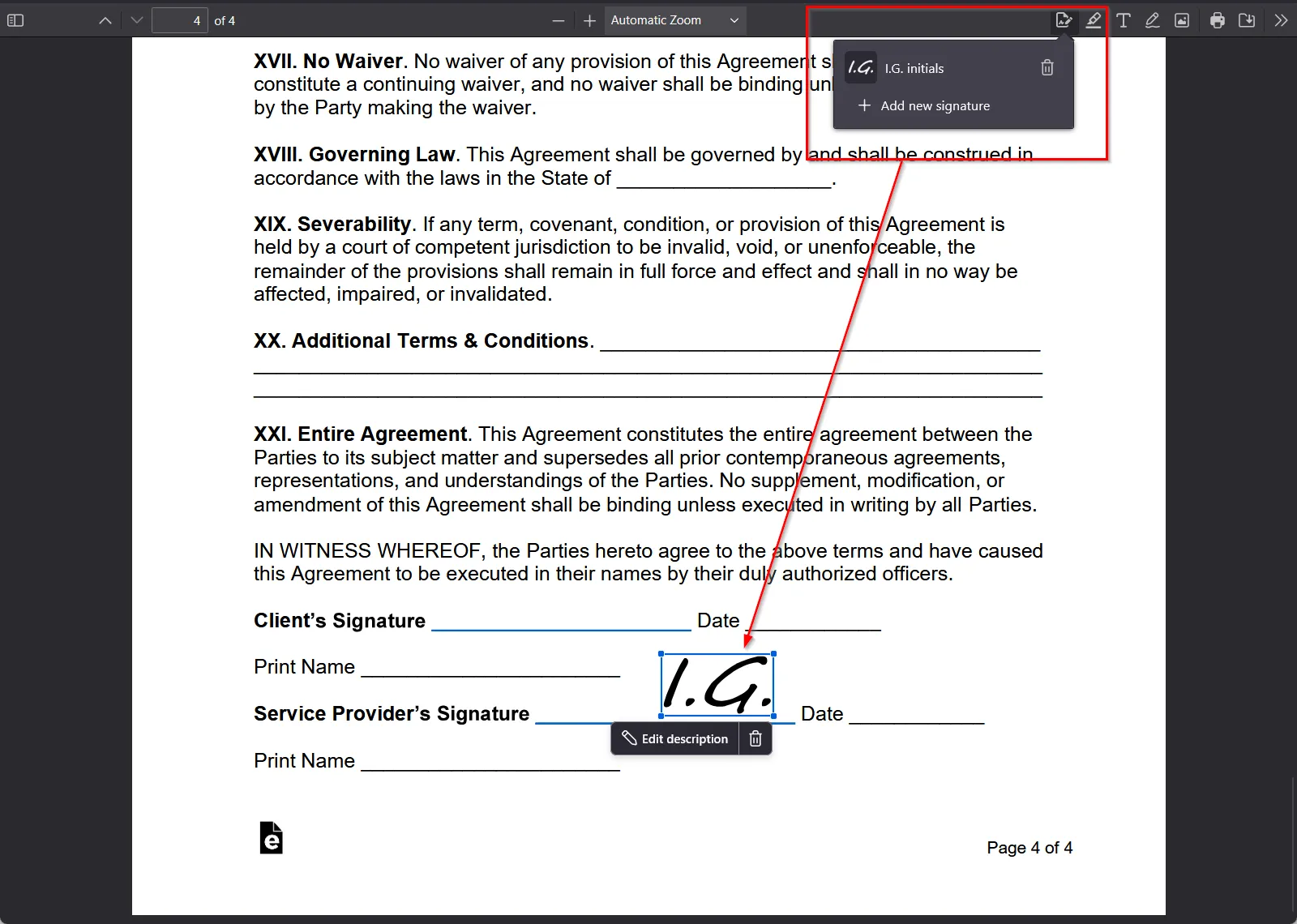
The signature is just an image overlay. It can be deleted and it carries no audit trail or legal weight. For informal use, signing PDF in Firefox browser works fine. For anything legally important, use KAiZEN eSign instead.
2. Sign PDF in Microsoft Edge Browser
Edge does not have a dedicated signature tool but the draw feature works for a quick signature when you need to sign PDF in your browser quickly.
- Open your PDF in Edge by dragging and dropping or right-clicking and selecting Open with Microsoft Edge
- Click the Draw tool in the top menu and adjust color and thickness if needed
- Use your mouse, stylus, or touchscreen to draw your signature
- Use the Erase tool to remove and retry if needed
- Save by clicking the disk icon or pressing Ctrl+S
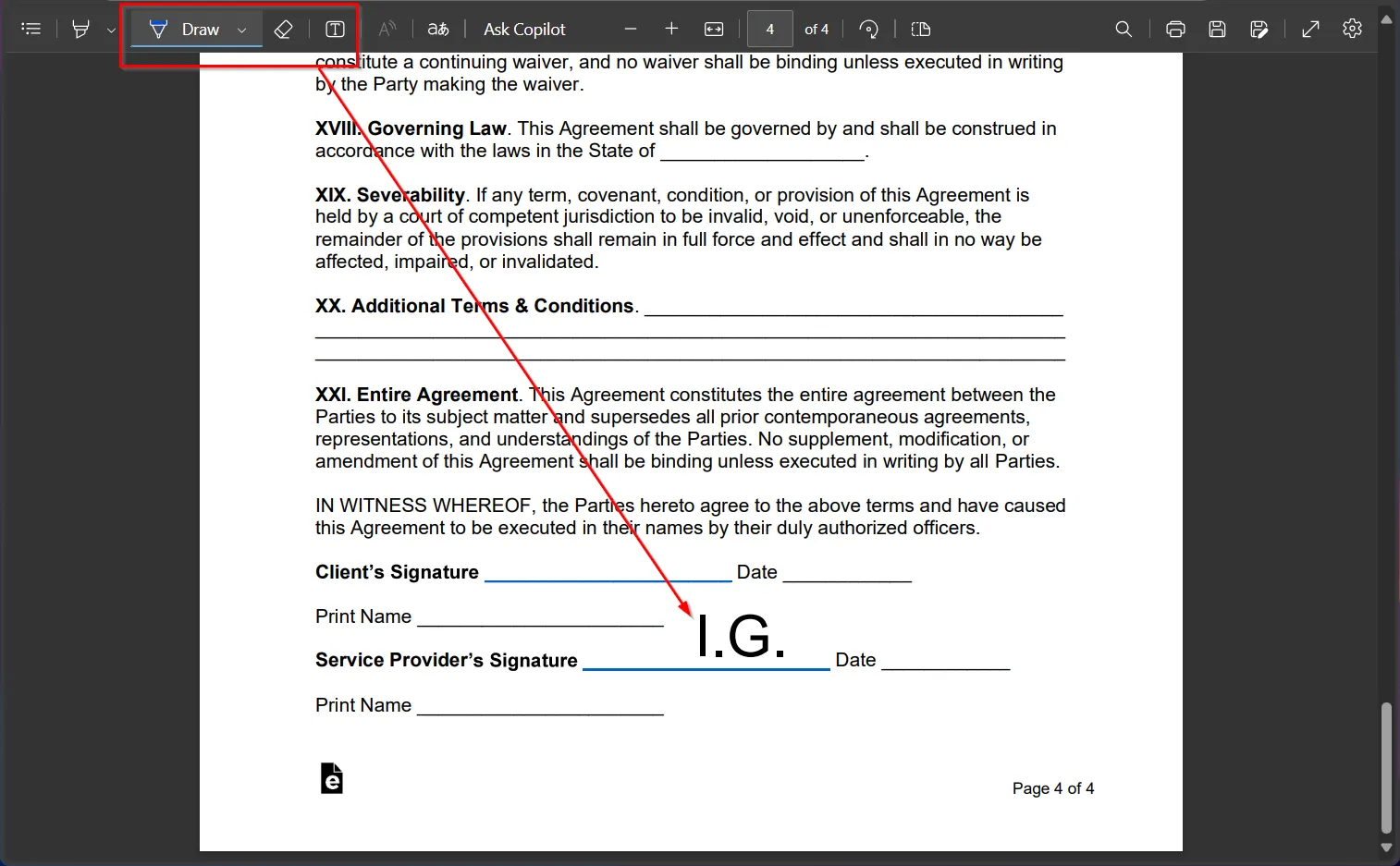
There is no typed-signature option and like Firefox there is no audit trail if the signature is ever questioned. This works well for a one-off signature on your own machine.
3. Sign PDF in Google Chrome Browser
Chrome also has no dedicated signature tool but you can use its draw tool to sign PDF in your Chrome browser.
- Open your PDF in Chrome by dragging and dropping or right-clicking and selecting Open with Google Chrome
- Click the Draw tool scribble icon and adjust size and color in the side menu
- Draw your signature on the page
- Click Download in the top menu or press Ctrl+S to save
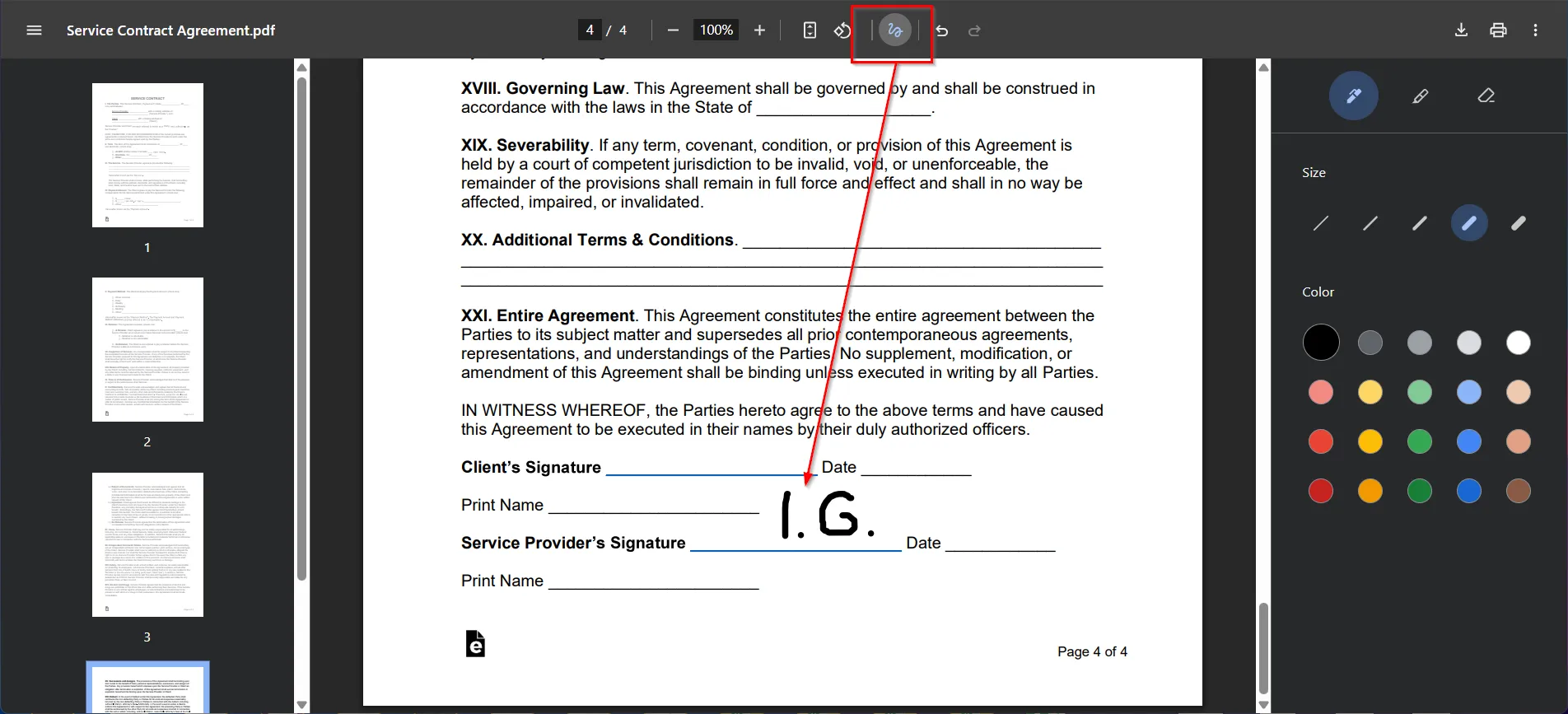
It is the fastest option when a document genuinely does not need to prove anything. But Chrome’s built-in tool is the most basic of the three, with no reuse and no audit trail. For legally valid signing in your browser, KAiZEN eSign is the better choice.
How to sign PDF files online with KAiZEN eSign
Follow these steps to sign PDF in your browser using KAiZEN eSign:
- Register for a free account, no credit card required
- Enter your name and email as the signer
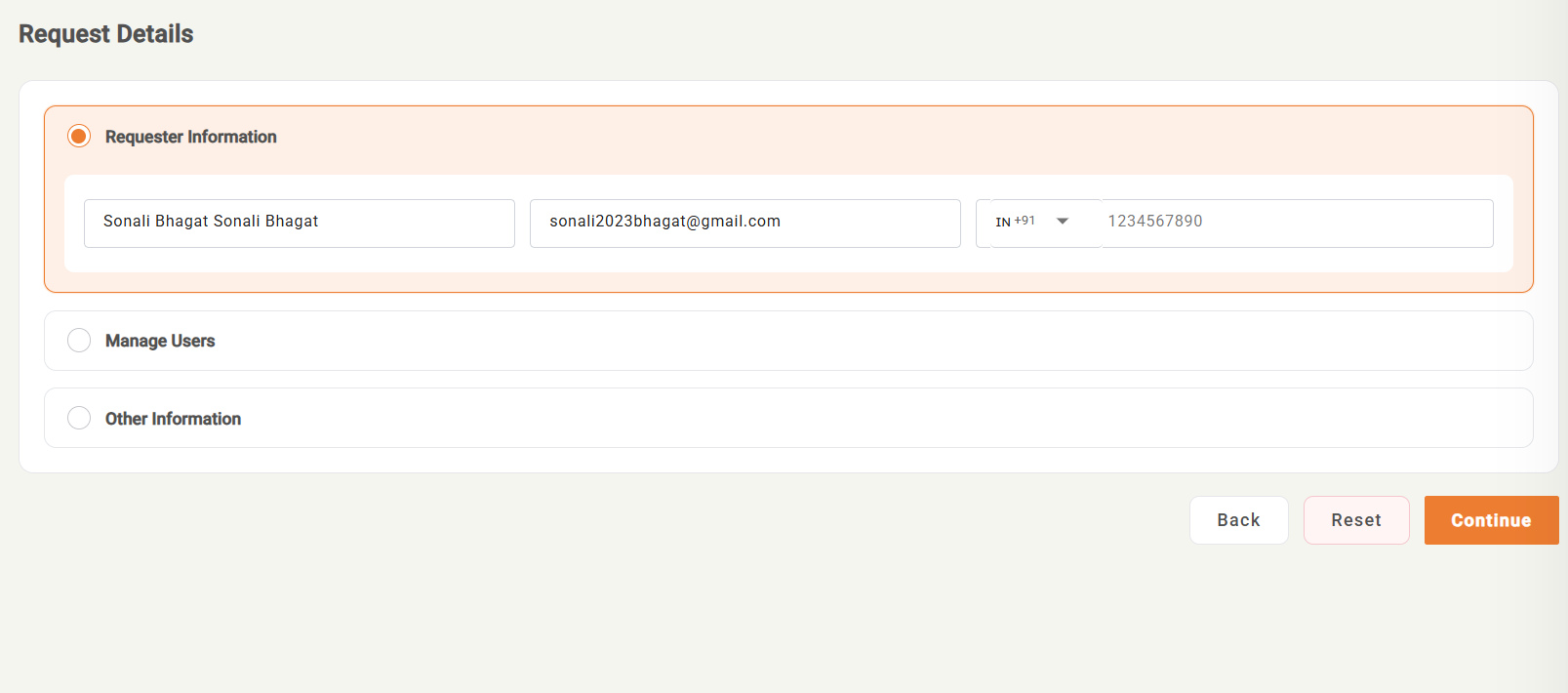
- Click Upload and add your PDF drag and drop or browse your files
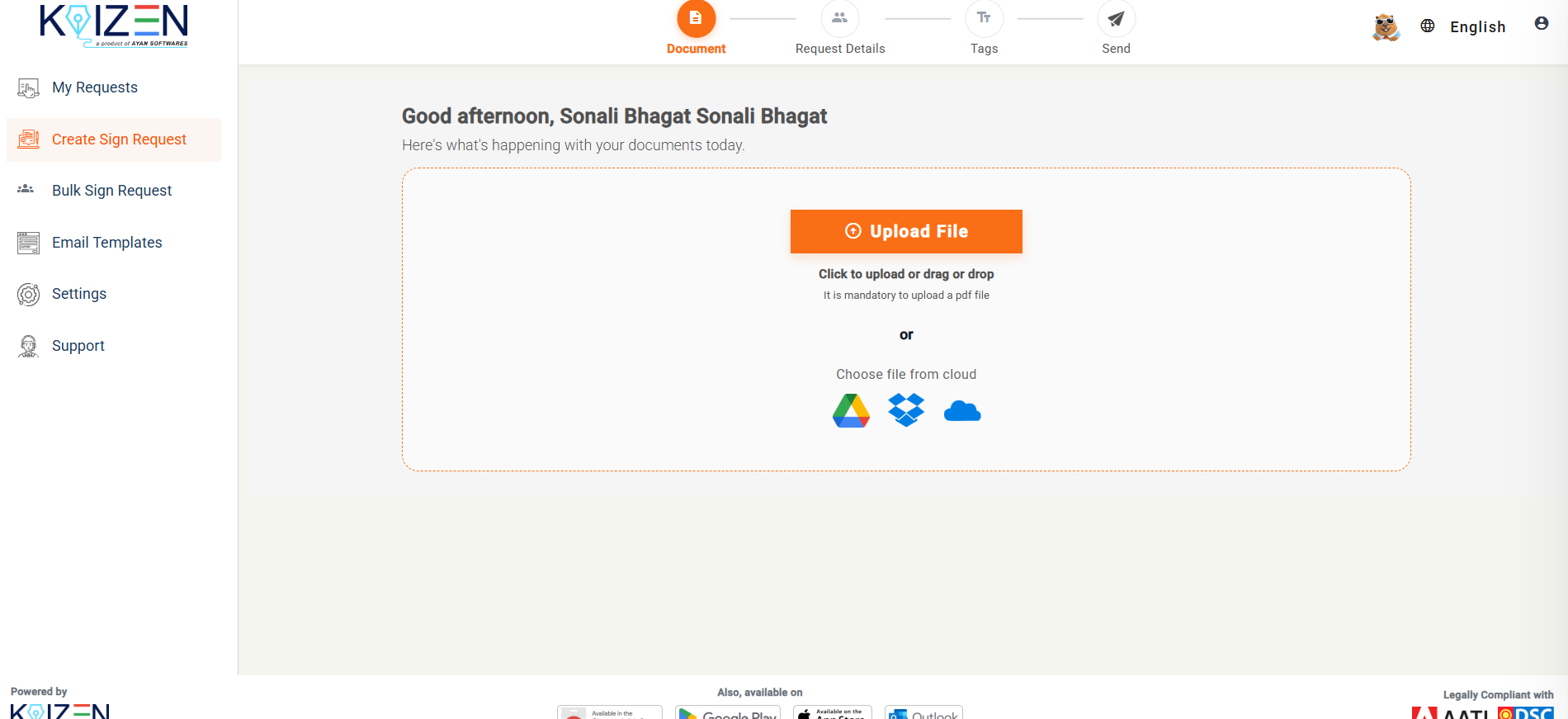
- Choose who is signing: Me Only, Me and Others, or Others Only
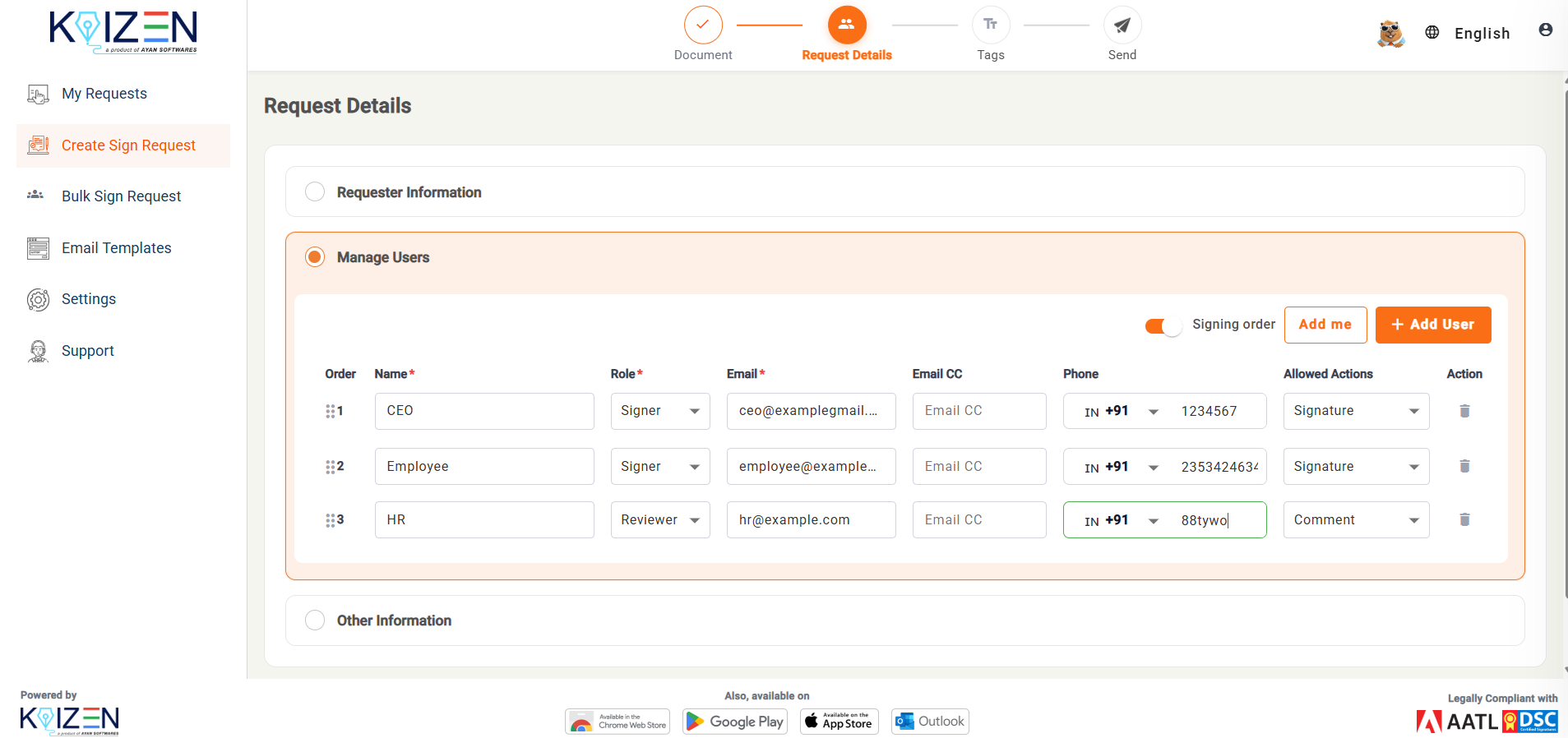
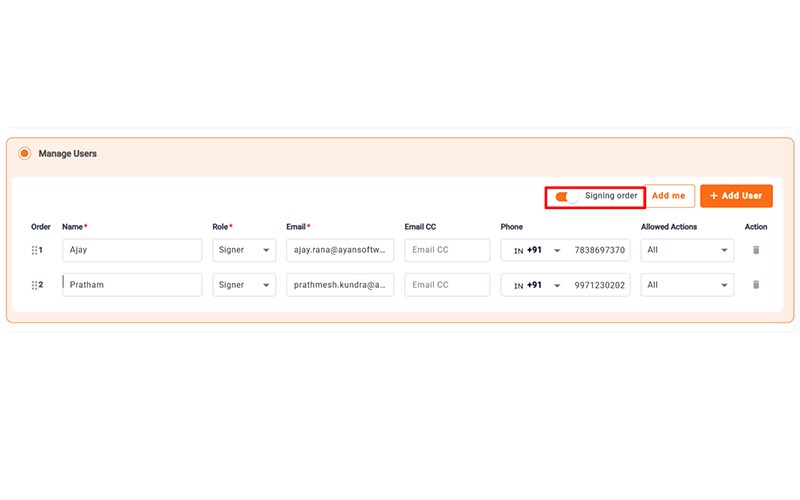
- If others are signing, add them and set the signing order
- Drag the signature field onto the page add date, initials, or custom fields as needed
- Choose Draw, Type, or Upload to create your signature
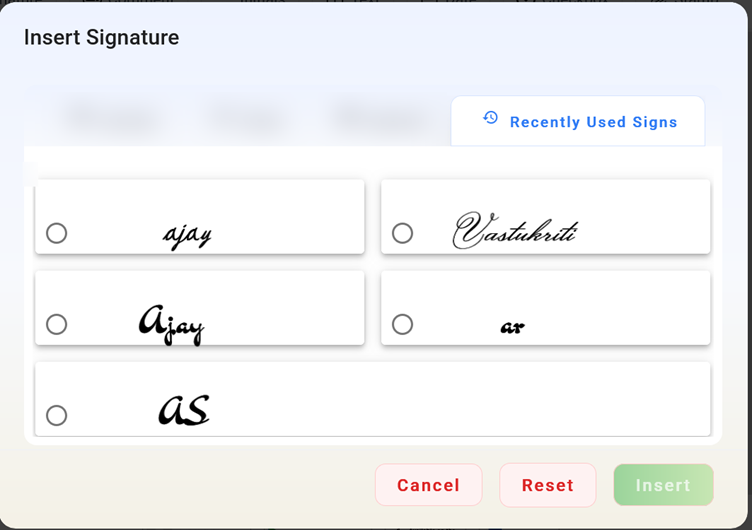
- Click Sign to finish instantly, or Send to request signatures and track them in real time
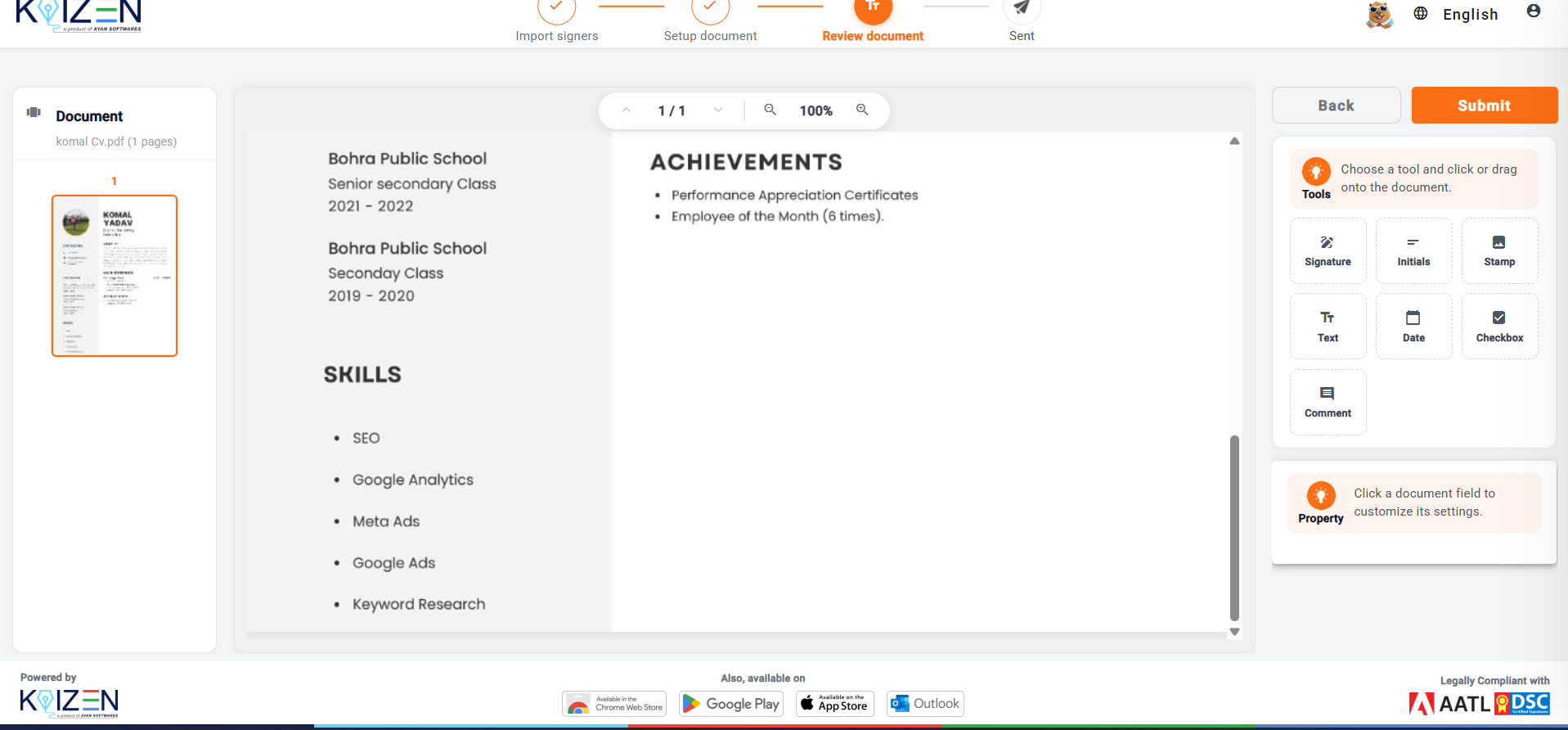
KAiZEN eSign delivers secure signing that works entirely in your browser. It offers legally valid electronic signatures backed by a Class III DSC, a permanent audit trail, and integrations with Salesforce and TallyPrime for Indian businesses that need signing built into their existing workflow.
Learn more about why electronic signatures are legally binding in India and what makes them valid under the IT Act 2000.
Why Use KAiZEN eSign Instead of Free Browser Tools to Sign PDF in Your Browser
Free browser tools are fine for a quick one-off signature. But if you are signing contracts, approvals, or HR documents, KAiZEN eSign gives you the security and features that basic browser tools cannot match when you need to sign PDF in your browser professionally.
- Legally binding signatures backed by a Class III Digital Signature Certificate under the IT Act 2000, so signatures are valid for business and legal use in India
- Permanent audit trail where every action from upload to final signature is logged with who signed and when
- Request multiple signatures by adding signers, setting signing order, and tracking completion in real time
- Reusable signatures where you save your signature once and reuse it across documents
- Business integrations to connect Salesforce or TallyPrime and sign directly from tools you already use
- Pay only for what you sign after the free trial it is Rs 45 plus tax per signature with no subscription and no minimum
Read our full guide on eSignature pricing to understand exactly what you will pay when you sign PDF in your browser using KAiZEN eSign.
Choosing the Right Way to Sign PDF in Your Browser
If you are signing something informal like a note to yourself or a quick internal approval, your browser’s built-in tool is enough when you need to sign PDF in your browser quickly.
KAiZEN eSign is the better choice for contracts, approvals, invoices, and anything that needs to hold up as proof of who signed. It lets you sign, send, and track documents entirely in your browser with no separate app to switch to.
| Feature | Browser Built-In Tools | KAiZEN eSign |
|---|---|---|
| Account needed | No | Free account required |
| Legally binding | No | Yes — Class III DSC |
| Audit trail | No | Yes — permanent record |
| Send to others | No | Yes — multi-signer workflows |
| Reusable signature | Firefox only | Yes — across all documents |
| WhatsApp delivery | No | Yes — native support |
| Cost | Free | First 10 free, then Rs 45 per sign |
See how KAiZEN eSign compares to other platforms when you need to sign PDF in your browser. Read our guides on Adobe Acrobat Sign alternatives and how to sign PDF online without an account for more options.
Conclusion
Knowing how to sign PDF in your browser is a skill every business and individual needs in 2026. For informal personal documents, Firefox, Edge, and Chrome all offer quick built-in tools that require no account or setup.
For anything that needs to hold up legally, contracts, approvals, HR documents, client agreements, KAiZEN eSign is the right way to sign PDF in your browser. It gives you legally binding signatures, permanent audit trails, multi-signer workflows, and WhatsApp delivery, all without leaving your browser tab.
Start your free trial today at ayankaizen.com. Your first 10 eSigns are completely free. No credit card required.
Frequently asked questions
Q2. Can I sign a PDF in my browser without creating an account?
Yes. Firefox, Edge and Chrome all let you sign without an account. KAiZEN eSign needs a free account, which is what makes the audit trail and reusable signature possible.
Q3. Is a signature drawn in my browser legally valid?
A signature drawn with a browser tool is just an image on the page. There is no certificate or audit trail behind it, so it is hard to prove who signed. Signatures from KAiZEN eSign are backed by a Class III DSC and are legally valid under the IT Act, 2000.
Q4. Can I save my signature and reuse it?
Yes. You can save your signature in Firefox for reuse, or save it to your KAiZEN eSign account to use across all future documents.
Q5. Can I send a PDF to someone else to sign?
Not with browser tools, because they only sign the file already open in front of you. KAiZEN eSign’s free trial covers sending documents to others too, with no separate limit on signer count.
Q6. Can I add text, dates or initials to a PDF in my browser?
You can draw, highlight and do basic markup in Firefox, Edge and Chrome. KAiZEN eSign lets you add form fields, dates and initials directly onto the document while preparing it for signature.
Q7. Is it safe to sign PDFs online with KAiZEN eSign?
Yes. KAiZEN eSign uses encrypted transfer and secure storage, with an audit log tracking every action for full transparency.
Q8. How do I get a PDF signed by several people?
Use KAiZEN eSign to add multiple signers, set a signing order, and track who has signed and who is still pending, all in real time.
Sign up for Free
Trial today!
Try KAiZEN for free

TL:DR : Sign PDF in Your Browser
You can sign a PDF in your browser for free using Firefox, Edge or Chrome, but these tools only add a basic signature with no audit trail. For contracts and approvals that need proof of who signed, KAiZEN eSign lets you sign, send and track PDFs in your browser, with an audit trail and multi-signer workflows. Your first 10 signatures are free.
Signing a PDF in your browser is one of the fastest ways to complete paperwork. There’s no need to scan, print, or install anything , just open your browser and sign in a few clicks.
Modern browsers like Firefox, Edge, and Chrome are useful for personal use, letting you draw or add a basic signature straight onto a PDF.
But if you need more than a scribble, something that holds up if a signature is ever questioned, KAiZEN eSign gives you legally binding electronic signatures, audit trails, and multi-signer workflows, all from your browser.
In this guide, you’ll learn how to sign a PDF in your browser for free using built-in tools and KAiZEN eSign
How to Sign PDF in Your Browser Using Free Tools
Free browser tools add a basic signature to a PDF, making them fine for personal use or informal approvals. But they do not support legally binding e-signatures, audit trails, or sending to other signers. Here are three ways to sign PDF in your browser for free.
1. Sign PDF in Firefox Browser
Firefox includes the most capable native signature tool of the three browsers, with no signup required.
- Open your PDF in Firefox
- Click Add signature then Add new signature in the top menu
- Choose to type, draw, or upload an image of your signature
- Add a description and choose whether to save the signature for reuse
- Click Add to place the signature on the page
- Use your mouse to move and reposition it
The signature is just an image overlay. It can be deleted and it carries no audit trail or legal weight. For informal use, signing PDF in Firefox browser works fine. For anything legally important, use KAiZEN eSign instead.
2. Sign PDF in Microsoft Edge Browser
Edge does not have a dedicated signature tool but the draw feature works for a quick signature when you need to sign PDF in your browser quickly.
- Open your PDF in Edge by dragging and dropping or right-clicking and selecting Open with Microsoft Edge
- Click the Draw tool in the top menu and adjust color and thickness if needed
- Use your mouse, stylus, or touchscreen to draw your signature
- Use the Erase tool to remove and retry if needed
- Save by clicking the disk icon or pressing Ctrl+S
There is no typed-signature option and like Firefox there is no audit trail if the signature is ever questioned. This works well for a one-off signature on your own machine.
3. Sign PDF in Google Chrome Browser
Chrome also has no dedicated signature tool but you can use its draw tool to sign PDF in your Chrome browser.
- Open your PDF in Chrome by dragging and dropping or right-clicking and selecting Open with Google Chrome
- Click the Draw tool scribble icon and adjust size and color in the side menu
- Draw your signature on the page
- Click Download in the top menu or press Ctrl+S to save
It is the fastest option when a document genuinely does not need to prove anything. But Chrome’s built-in tool is the most basic of the three, with no reuse and no audit trail. For legally valid signing in your browser, KAiZEN eSign is the better choice.
How to sign PDF files online with KAiZEN eSign
Follow these steps to sign PDF in your browser using KAiZEN eSign:
- Register for a free account, no credit card required
- Enter your name and email as the signer
- Click Upload and add your PDF drag and drop or browse your files
- Choose who is signing: Me Only, Me and Others, or Others Only
- If others are signing, add them and set the signing order
- Drag the signature field onto the page add date, initials, or custom fields as needed
- Choose Draw, Type, or Upload to create your signature
- Click Sign to finish instantly, or Send to request signatures and track them in real time
KAiZEN eSign delivers secure signing that works entirely in your browser. It offers legally valid electronic signatures backed by a Class III DSC, a permanent audit trail, and integrations with Salesforce and TallyPrime for Indian businesses that need signing built into their existing workflow.
Learn more about why electronic signatures are legally binding in India and what makes them valid under the IT Act 2000.
Why Use KAiZEN eSign Instead of Free Browser Tools to Sign PDF in Your Browser
Free browser tools are fine for a quick one-off signature. But if you are signing contracts, approvals, or HR documents, KAiZEN eSign gives you the security and features that basic browser tools cannot match when you need to sign PDF in your browser professionally.
- Legally binding signatures backed by a Class III Digital Signature Certificate under the IT Act 2000, so signatures are valid for business and legal use in India
- Permanent audit trail where every action from upload to final signature is logged with who signed and when
- Request multiple signatures by adding signers, setting signing order, and tracking completion in real time
- Reusable signatures where you save your signature once and reuse it across documents
- Business integrations to connect Salesforce or TallyPrime and sign directly from tools you already use
- Pay only for what you sign after the free trial it is Rs 45 plus tax per signature with no subscription and no minimum
Read our full guide on eSignature pricing to understand exactly what you will pay when you sign PDF in your browser using KAiZEN eSign.
Choosing the Right Way to Sign PDF in Your Browser
If you are signing something informal like a note to yourself or a quick internal approval, your browser’s built-in tool is enough when you need to sign PDF in your browser quickly.
KAiZEN eSign is the better choice for contracts, approvals, invoices, and anything that needs to hold up as proof of who signed. It lets you sign, send, and track documents entirely in your browser with no separate app to switch to.
| Feature | Browser Built-In Tools | KAiZEN eSign |
|---|---|---|
| Account needed | No | Free account required |
| Legally binding | No | Yes — Class III DSC |
| Audit trail | No | Yes — permanent record |
| Send to others | No | Yes — multi-signer workflows |
| Reusable signature | Firefox only | Yes — across all documents |
| WhatsApp delivery | No | Yes — native support |
| Cost | Free | First 10 free, then Rs 45 per sign |
See how KAiZEN eSign compares to other platforms when you need to sign PDF in your browser. Read our guides on Adobe Acrobat Sign alternatives and how to sign PDF online without an account for more options.
Conclusion
Knowing how to sign PDF in your browser is a skill every business and individual needs in 2026. For informal personal documents, Firefox, Edge, and Chrome all offer quick built-in tools that require no account or setup.
For anything that needs to hold up legally, contracts, approvals, HR documents, client agreements, KAiZEN eSign is the right way to sign PDF in your browser. It gives you legally binding signatures, permanent audit trails, multi-signer workflows, and WhatsApp delivery, all without leaving your browser tab.
Start your free trial today at ayankaizen.com. Your first 10 eSigns are completely free. No credit card required.
Frequently asked questions
Q2. Can I sign a PDF in my browser without creating an account?
Yes. Firefox, Edge and Chrome all let you sign without an account. KAiZEN eSign needs a free account, which is what makes the audit trail and reusable signature possible.
Q3. Is a signature drawn in my browser legally valid?
A signature drawn with a browser tool is just an image on the page. There is no certificate or audit trail behind it, so it is hard to prove who signed. Signatures from KAiZEN eSign are backed by a Class III DSC and are legally valid under the IT Act, 2000.
Q4. Can I save my signature and reuse it?
Yes. You can save your signature in Firefox for reuse, or save it to your KAiZEN eSign account to use across all future documents.
Q5. Can I send a PDF to someone else to sign?
Not with browser tools, because they only sign the file already open in front of you. KAiZEN eSign’s free trial covers sending documents to others too, with no separate limit on signer count.
Q6. Can I add text, dates or initials to a PDF in my browser?
You can draw, highlight and do basic markup in Firefox, Edge and Chrome. KAiZEN eSign lets you add form fields, dates and initials directly onto the document while preparing it for signature.
Q7. Is it safe to sign PDFs online with KAiZEN eSign?
Yes. KAiZEN eSign uses encrypted transfer and secure storage, with an audit log tracking every action for full transparency.
Q8. How do I get a PDF signed by several people?
Use KAiZEN eSign to add multiple signers, set a signing order, and track who has signed and who is still pending, all in real time.
Sign up for Free
Trial today!
Try KAiZEN for free