
How to Add Digital Signature in Microsoft Edge with KAiZEN eSign?


With the speed of Microsoft Edge and the high-performance KAiZEN eSign Extension, you can now close deals 3X faster.
Adding an eSignature in Microsoft Edge sounds like it should be simple, but in reality, it often turns into an unnecessary hassle. Most of us have been stuck in that frustrating loop: downloading a PDF, opening a separate desktop app, or—even worse—printing a document just to sign it with a pen and scan it back. Even though Microsoft Edge is a top-tier browser, its default “Draw” tool isn’t enough for business. It lacks the security, audit trails, and legal validity required for professional agreements.
This is where the KAiZEN eSign Edge Extension changes everything. It transforms your browser from a simple file viewer into a professional document hub. No more switching between apps, no more heavy software, and no more compromising on security just to get a deal closed.
In this guide, you will learn the “Quick and Easy” way to add signers, set up reviewers, generate secure signing links, and apply professional tags—all while maintaining global compliance without ever leaving your browser tab.
What Makes KAiZEN eSign Unique? (The USPs)
Unlike traditional eSignature platforms that lock you into expensive monthly contracts, KAiZEN is built for flexibility and global reach.
- No Monthly Subscriptions: We believe you should only pay for what you use. KAiZEN offers a Pay-as-You-Go model, perfect for everyone from individual freelancers to global enterprises.
- Worldwide Legal Validity: KAiZEN is compliant with major global eSignature laws, including the ESIGN Act and UETA (USA), eIDAS (European Union), and the IT Act 2000 (India).
- Secure Token-Based Access: Our Edge extension uses secure token-based authentication. This keeps your session active and secure, so you stay ready to sign without constant interruptions or repeated password prompts.
- Real-Time WhatsApp Alerts: Don’t waste time refreshing your inbox. Get notified the second your document is signed via WhatsApp.
- Bank-Level Security: Every document is protected with end-to-end encryption and a comprehensive Audit Trail (tracking IP addresses and timestamps).
How to Install KAiZEN eSign on Microsoft Edge
Since Edge is built on the Chromium engine, it runs KAiZEN eSign perfectly.
- Open Microsoft Edge and click the three dots (…) > Extensions.
- Toggle on “Allow extensions from other stores” (found in the bottom-left corner).
- Visit the Chrome Web Store and search for KAiZEN eSign.
- Click “Add to Chrome” (it will install to Edge automatically).
- Click the Extensions icon (puzzle piece) in your toolbar and Pin KAiZEN for one-click access.
How to Sign a Document: The Quick & Easy Way
-
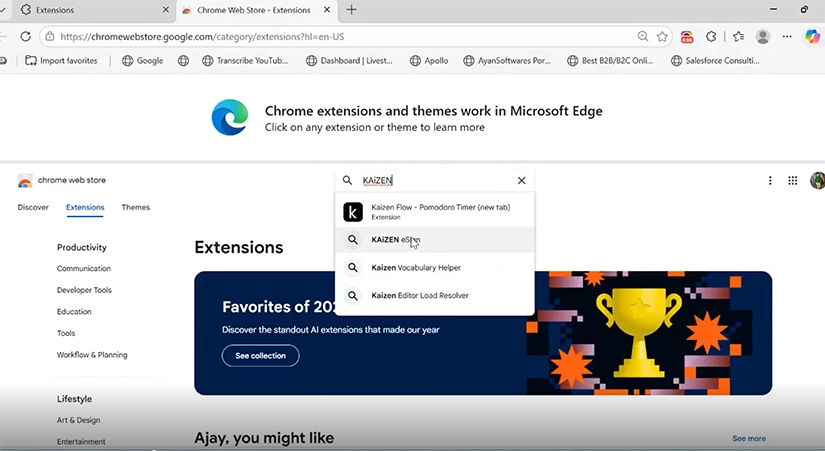
Search Edge Extension by typing KAiZEN eSign in search bar
-
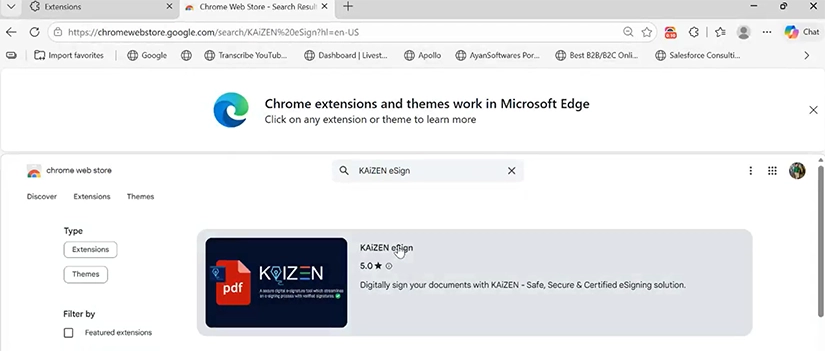
Choose and Click on the KAiZEN eSign Icon
-
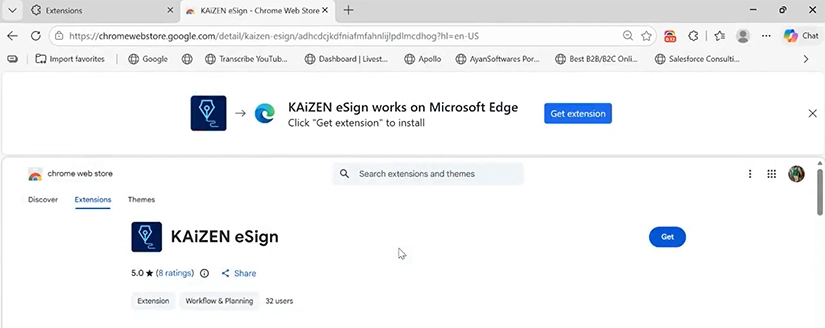
Click The Get button to install the KAiZEN eSign extension.
-
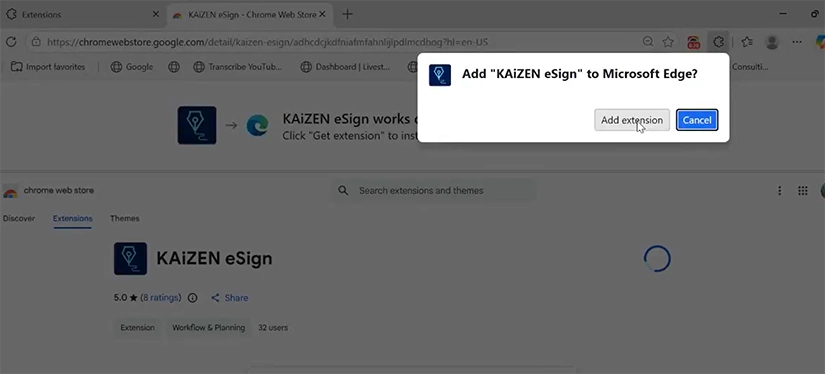
Click on Add extension.
-
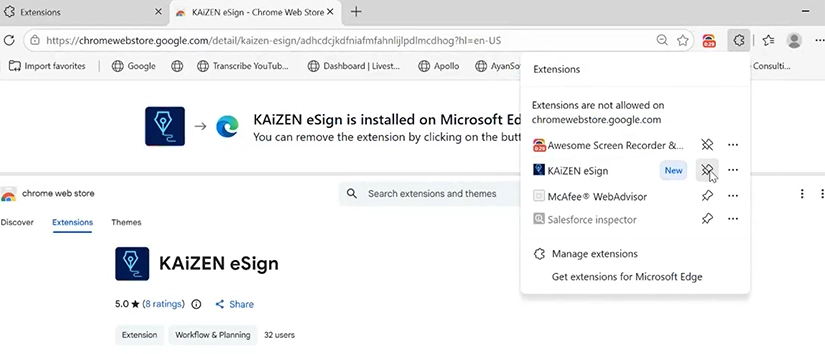
Pin the Extension.
-
Now KAiZEN eSign is ready to use on Edge Browser
-
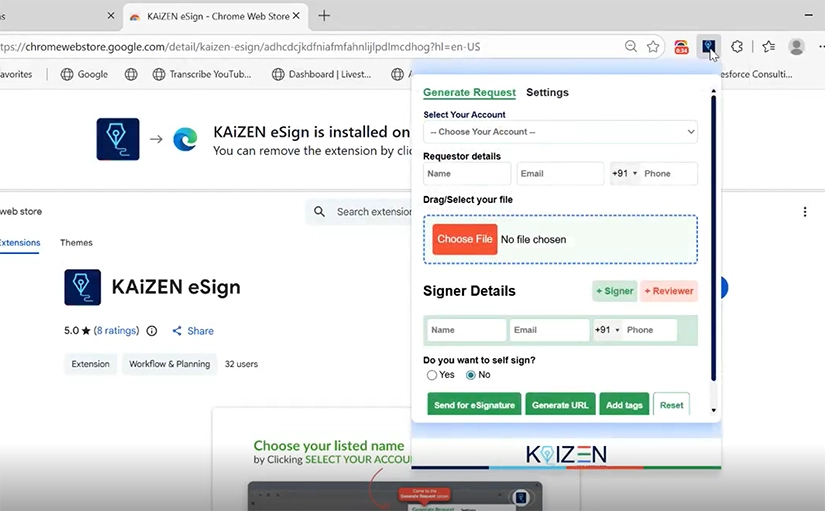
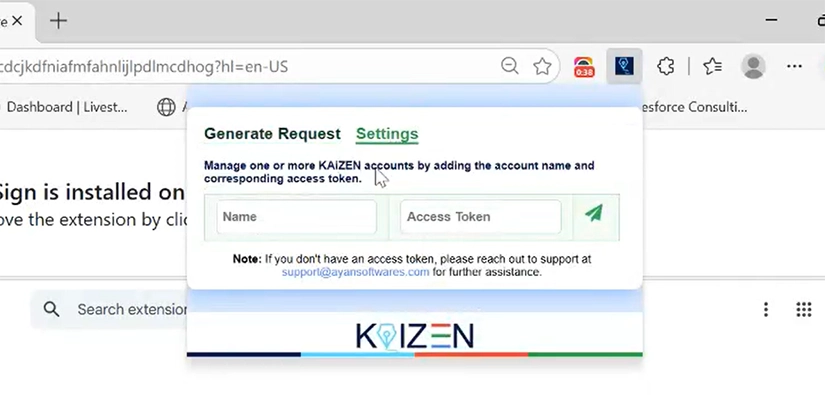
Generate eSignature Requests by adding access token provided by our Team
- Place Your Signature: Choose to draw, type, or upload your signature. Simply drag and drop it onto the correct spot.
- Finish: Click save. Your document is now legally signed, encrypted, and ready to send.
- The complete Video to help you.
FAQ
Do I have to pay a monthly subscription?
No. KAiZEN eSign is famous for its Pay-as-You-Go model. You don't need to commit to a monthly fee; you simply purchase credits when you need to sign or send documents. Your credits never expire.
Does the recipient need KAiZEN to sign?
No. If you send a document for signature, your recipients can sign it for free on any device without downloading the extension or creating an account.
How secure is my data?
We use AATL (Adobe Approved Trust List) and DSC (Digital Signature Certificate) standards. Every signature comes with a tamper-evident audit log that records the signer's intent, IP address, and timestamp to prevent fraud.
Can I use multiple accounts?
Yes. The KAiZEN Edge extension allows you to manage multiple accounts (e.g., personal and business) within the same interface, making it easy to switch workflows instantly.
Sign up for Free
Trial today!
Try KAiZEN for free

With the speed of Microsoft Edge and the high-performance KAiZEN eSign Extension, you can now close deals 3X faster.
Adding an eSignature in Microsoft Edge sounds like it should be simple, but in reality, it often turns into an unnecessary hassle. Most of us have been stuck in that frustrating loop: downloading a PDF, opening a separate desktop app, or—even worse—printing a document just to sign it with a pen and scan it back. Even though Microsoft Edge is a top-tier browser, its default “Draw” tool isn’t enough for business. It lacks the security, audit trails, and legal validity required for professional agreements.
This is where the KAiZEN eSign Edge Extension changes everything. It transforms your browser from a simple file viewer into a professional document hub. No more switching between apps, no more heavy software, and no more compromising on security just to get a deal closed.
In this guide, you will learn the “Quick and Easy” way to add signers, set up reviewers, generate secure signing links, and apply professional tags—all while maintaining global compliance without ever leaving your browser tab.
What Makes KAiZEN eSign Unique? (The USPs)
Unlike traditional eSignature platforms that lock you into expensive monthly contracts, KAiZEN is built for flexibility and global reach.
- No Monthly Subscriptions: We believe you should only pay for what you use. KAiZEN offers a Pay-as-You-Go model, perfect for everyone from individual freelancers to global enterprises.
- Worldwide Legal Validity: KAiZEN is compliant with major global eSignature laws, including the ESIGN Act and UETA (USA), eIDAS (European Union), and the IT Act 2000 (India).
- Secure Token-Based Access: Our Edge extension uses secure token-based authentication. This keeps your session active and secure, so you stay ready to sign without constant interruptions or repeated password prompts.
- Real-Time WhatsApp Alerts: Don’t waste time refreshing your inbox. Get notified the second your document is signed via WhatsApp.
- Bank-Level Security: Every document is protected with end-to-end encryption and a comprehensive Audit Trail (tracking IP addresses and timestamps).
How to Install KAiZEN eSign on Microsoft Edge
Since Edge is built on the Chromium engine, it runs KAiZEN eSign perfectly.
- Open Microsoft Edge and click the three dots (…) > Extensions.
- Toggle on “Allow extensions from other stores” (found in the bottom-left corner).
- Visit the Chrome Web Store and search for KAiZEN eSign.
- Click “Add to Chrome” (it will install to Edge automatically).
- Click the Extensions icon (puzzle piece) in your toolbar and Pin KAiZEN for one-click access.
How to Sign a Document: The Quick & Easy Way
-
Search Edge Extension by typing KAiZEN eSign in search bar
-
Choose and Click on the KAiZEN eSign Icon
-
Click The Get button to install the KAiZEN eSign extension.
-
Click on Add extension.
-
Pin the Extension.
-
Now KAiZEN eSign is ready to use on Edge Browser
-
Generate eSignature Requests by adding access token provided by our Team
- Place Your Signature: Choose to draw, type, or upload your signature. Simply drag and drop it onto the correct spot.
- Finish: Click save. Your document is now legally signed, encrypted, and ready to send.
- The complete Video to help you.
FAQ
Do I have to pay a monthly subscription?
No. KAiZEN eSign is famous for its Pay-as-You-Go model. You don't need to commit to a monthly fee; you simply purchase credits when you need to sign or send documents. Your credits never expire.
Does the recipient need KAiZEN to sign?
No. If you send a document for signature, your recipients can sign it for free on any device without downloading the extension or creating an account.
How secure is my data?
We use AATL (Adobe Approved Trust List) and DSC (Digital Signature Certificate) standards. Every signature comes with a tamper-evident audit log that records the signer's intent, IP address, and timestamp to prevent fraud.
Can I use multiple accounts?
Yes. The KAiZEN Edge extension allows you to manage multiple accounts (e.g., personal and business) within the same interface, making it easy to switch workflows instantly.
Sign up for Free
Trial today!
Try KAiZEN for free