
Different Ways to Sign PDF Online with KAiZEN eSign

Signing a PDF is no longer limited to one method—choose the way that fits your workflow.
Once signing a PDF online was a one-way process. But now, with multiple options available, users can choose how they want to sign. Some prefer to write it, some type it, while others upload an image.
That’s why choosing the right signing method is so important.
In this blog, we’ve outlined the various options for signing a PDF online with KAiZEN eSign so you can select the best method for your workflow.
Ways to Sign a PDF Online with KAiZEN eSign
KAiZEN eSign provides flexible signing options to fit real-world business scenarios. The most commonly used methods are:
-
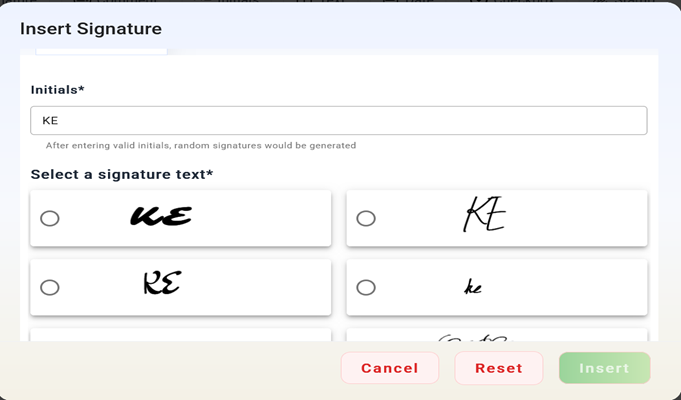
Type Your Signature and Add Initials (Auto-Generated Styles)
Typing your name is the easiest way to sign a PDF.
- Enter your initials or name
- Choose from multiple generated signature styles
- Select the one that fits your preference
👉 Best for: Quick and simple signing
-
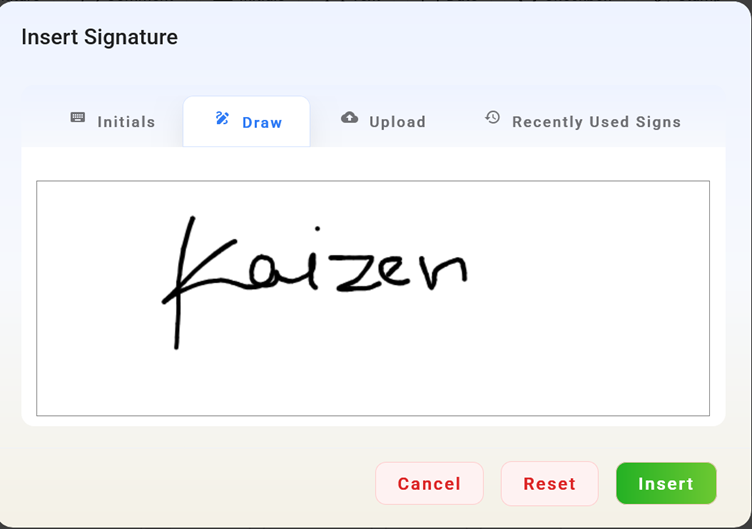
Draw Your Signature
This method closely replicates signing on paper.
- Draw your signature using a mouse, stylus, or touchscreen
- Provides a natural handwritten feel
- Ideal for users who prefer manual signing
👉 Best for: Personalized signing experience
-
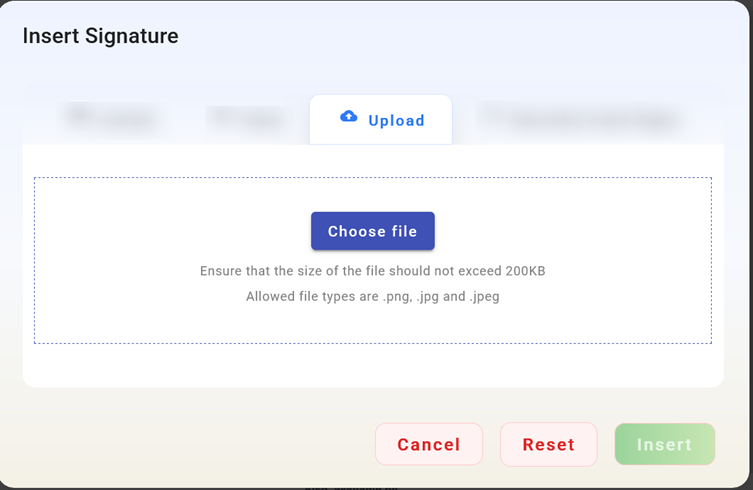
Upload a Signature Image
If you already have a saved signature, you can upload and use it.
- Upload .png, .jpg, or .jpeg files
- Insert it anywhere in the document
- Maintain consistency across documents
👉 Best for: Standardized signatures
-
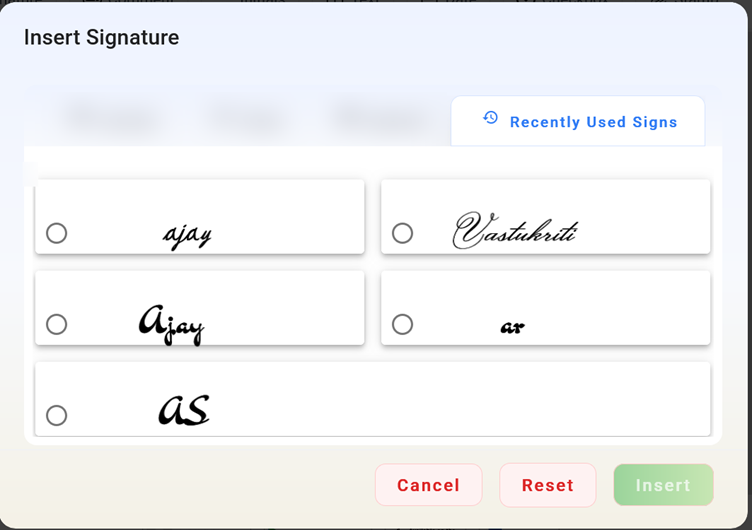
Use Recently Saved Signatures
KAiZEN eSign allows you to reuse previously created signatures.
- Select from your recently used signatures
- Avoid recreating signatures every time
- Speeds up repeat signing tasks
👉 Best for: Frequent users and repeated workflows
Signing PDFs with Multiple Signers
Many documents require signatures from more than one person. KAiZEN eSign supports scalable multi-signer workflows:
- Sequential signing: Signers complete the document one by one
- Parallel signing: Multiple signers can sign at the same time
This keeps collaboration efficient without delays.
👉 Can be used for: Agreements, approvals, contracts, and team-based decisions
Add More Than Just a Signature
While signing a PDF, you can also include additional information using fillable fields:
- Date fields
- Text inputs
- Checkboxes
- Approval markers
This converts a static PDF into an interactive document and reduces back-and-forth communication.
Choosing the Right Way to Sign a PDF
- Need a natural feel? Draw your signature
- Want speed? Type your signature
- Prefer consistency? Upload your signature
- Signing frequently? Use saved signatures
- Reviewing documents? Add initials
Choosing the right method makes the signing process faster and more efficient.
Conclusion
There isn’t a single best way to sign a PDF—it depends on your workflow.
KAiZEN eSign allows you to sign documents your way—by drawing, typing, uploading, or reusing saved signatures—making the process simple, fast, and flexible.
When signing becomes easier, approvals happen faster and your work keeps moving forward.
Sign up for Free
Trial today!
Try KAiZEN for free

Signing a PDF is no longer limited to one method—choose the way that fits your workflow.
Once signing a PDF online was a one-way process. But now, with multiple options available, users can choose how they want to sign. Some prefer to write it, some type it, while others upload an image.
That’s why choosing the right signing method is so important.
In this blog, we’ve outlined the various options for signing a PDF online with KAiZEN eSign so you can select the best method for your workflow.
Ways to Sign a PDF Online with KAiZEN eSign
KAiZEN eSign provides flexible signing options to fit real-world business scenarios. The most commonly used methods are:
-
Type Your Signature and Add Initials (Auto-Generated Styles)
Typing your name is the easiest way to sign a PDF.
- Enter your initials or name
- Choose from multiple generated signature styles
- Select the one that fits your preference
👉 Best for: Quick and simple signing
-
Draw Your Signature
This method closely replicates signing on paper.
- Draw your signature using a mouse, stylus, or touchscreen
- Provides a natural handwritten feel
- Ideal for users who prefer manual signing
👉 Best for: Personalized signing experience
-
Upload a Signature Image
If you already have a saved signature, you can upload and use it.
- Upload .png, .jpg, or .jpeg files
- Insert it anywhere in the document
- Maintain consistency across documents
👉 Best for: Standardized signatures
-
Use Recently Saved Signatures
KAiZEN eSign allows you to reuse previously created signatures.
- Select from your recently used signatures
- Avoid recreating signatures every time
- Speeds up repeat signing tasks
👉 Best for: Frequent users and repeated workflows
Signing PDFs with Multiple Signers
Many documents require signatures from more than one person. KAiZEN eSign supports scalable multi-signer workflows:
- Sequential signing: Signers complete the document one by one
- Parallel signing: Multiple signers can sign at the same time
This keeps collaboration efficient without delays.
👉 Can be used for: Agreements, approvals, contracts, and team-based decisions
Add More Than Just a Signature
While signing a PDF, you can also include additional information using fillable fields:
- Date fields
- Text inputs
- Checkboxes
- Approval markers
This converts a static PDF into an interactive document and reduces back-and-forth communication.
Choosing the Right Way to Sign a PDF
- Need a natural feel? Draw your signature
- Want speed? Type your signature
- Prefer consistency? Upload your signature
- Signing frequently? Use saved signatures
- Reviewing documents? Add initials
Choosing the right method makes the signing process faster and more efficient.
Conclusion
There isn’t a single best way to sign a PDF—it depends on your workflow.
KAiZEN eSign allows you to sign documents your way—by drawing, typing, uploading, or reusing saved signatures—making the process simple, fast, and flexible.
When signing becomes easier, approvals happen faster and your work keeps moving forward.
Sign up for Free
Trial today!
Try KAiZEN for free